Follow us:


When readers finish a post on your blog, you want to give them a reason to keep reading. Adding thumbnails (featured images) to the previous and next post links is a simple way to make navigation more visual and engaging.
In this tutorial, we’ll show you how to display previous and next post links with thumbnails in WordPress without using any plugin.
Why Add Thumbnails to Post Navigation?
By default, WordPress can display text links to the previous and next posts. While this works, it’s not very eye-catching.
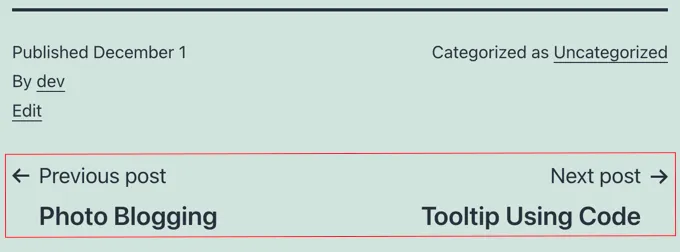
Using thumbnails instead has several advantages:
- Makes navigation more visually appealing
- Provides a quick preview of the next or previous article
- Encourages readers to stay longer on your site
- Increases page views naturally
Step 1: Add the Navigation Function
First, you’ll need to add a custom function that builds the navigation links with featured images. Open your child theme’s functions.php file and paste this code:
function wppassion_posts_nav() {
    $next_post = get_next_post();
    $prev_post = get_previous_post();
    if ( $next_post || $prev_post ) : ?>
        <div class="wppassion-posts-nav">
            <div>
                <?php if ( ! empty( $prev_post ) ) : ?>
                    <a href="<?php echo get_permalink( $prev_post ); ?>">
                        <div>
                            <div class="wppassion-posts-nav__thumbnail wppassion-posts-nav__prev">
                                <?php echo get_the_post_thumbnail( $prev_post, [ 100, 100 ] ); ?>
                            </div>
                        </div>
                        <div>
                            <strong>
                                <svg viewBox="0 0 24 24" width="24" height="24"><path d="M13.775,18.707,8.482,13.414a2,2,0,0,1,0-2.828l5.293-5.293,1.414,1.414L9.9,12l5.293,5.293Z"/></svg>
                                <?php _e( 'Previous article', 'wppassion' ) ?>
                            </strong>
                            <h4><?php echo get_the_title( $prev_post ); ?></h4>
                        </div>
                    </a>
                <?php endif; ?>
            </div>
            <div>
                <?php if ( ! empty( $next_post ) ) : ?>
                    <a href="<?php echo get_permalink( $next_post ); ?>">
                        <div>
                            <strong>
                                <?php _e( 'Next article', 'wppassion' ) ?>
                                <svg viewBox="0 0 24 24" width="24" height="24"><path d="M10.811,18.707,9.4,17.293,14.689,12,9.4,6.707l1.415-1.414L16.1,10.586a2,2,0,0,1,0,2.828Z"/></svg>
                            </strong>
                            <h4><?php echo get_the_title( $next_post ); ?></h4>
                        </div>
                        <div>
                            <div class="wppassion-posts-nav__thumbnail wppassion-posts-nav__next">
                                <?php echo get_the_post_thumbnail( $next_post, [ 100, 100 ] ); ?>
                            </div>
                        </div>
                    </a>
                <?php endif; ?>
            </div>
        </div> <!-- .wppassion-posts-nav -->

    <?php endif;
}
// Hook it "after post content"
function wppassion_insert_posts_nav_after_content( $content ) {
    if ( is_singular( 'post' ) && in_the_loop() && is_main_query() ) {
        ob_start();
        wppassion_posts_nav();
        $content .= ob_get_clean();
    }
    return $content;
}
add_filter( 'the_content', 'wppassion_insert_posts_nav_after_content' );
This code will automatically show the navigation block after every post’s content.
Step 2: Add CSS Styling
Now let’s make the navigation look good with some simple CSS. Go to your WordPress dashboard and click Appearance » Customize. In the sidebar, find and click the “Additional CSS” section and add this:
/* Wrapper */
.wppassion-posts-nav {
    display: flex;
    justify-content: space-between;
    gap: 20px;
    margin-top: 40px;
    padding-top: 20px;
    border-top: 1px solid #e0e0e0;
}
/* Each nav item */
.wppassion-posts-nav > div {
    flex: 1;
    display: flex;
}
/* Links */
.wppassion-posts-nav a {
    display: flex;
    align-items: center;
    text-decoration: none !important;
    color: inherit;
    gap: 12px;
}
/* Thumbnail */
.wppassion-posts-nav__thumbnail img {
    width: 100px;
    height: 100px;
    object-fit: cover;
    border-radius: 6px;
    box-shadow: 0 2px 5px rgba(0,0,0,0.1);
}
/* Titles */
.wppassion-posts-nav h4 {
    margin: 6px 0 0;
    font-size: 16px;
    line-height: 1.4;
}
.wppassion-posts-nav strong {
    font-size: 13px;
    font-weight: 600;
    color: #666;
    display: flex;
    align-items: center;
    gap: 4px;
}
/* Responsive: stack vertically on mobile */
@media (max-width: 768px) {
    .wppassion-posts-nav {
        flex-direction: column;
    }
}
Final Result
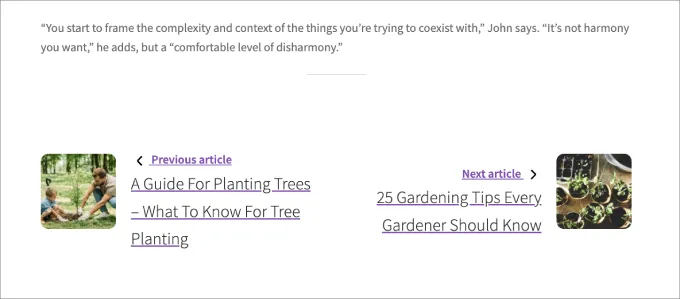
Once everything is in place:
- At the end of each post, visitors will see two navigation cards.
- Each card includes a thumbnail image and the title of the previous or next post.
- The layout is clean on desktop, and it stacks neatly on mobile.
This creates a smooth browsing experience and encourages readers to move deeper into your content.