Follow us:


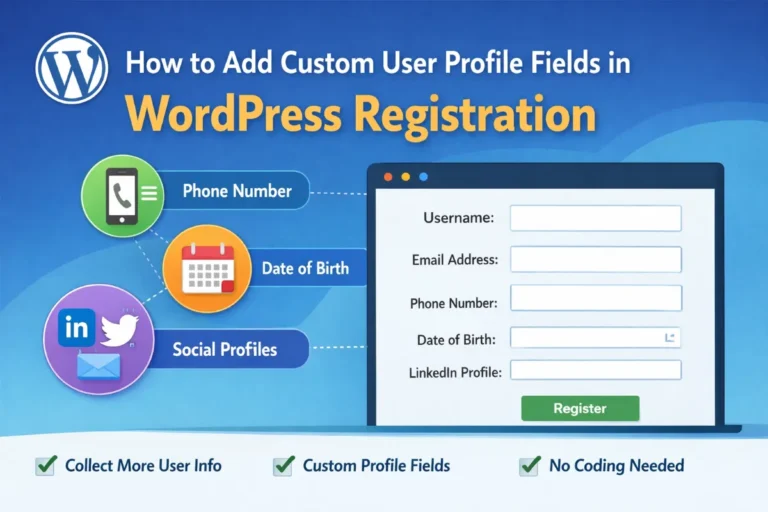
Adding custom user fields during registration is only half the job. The real usefulness comes when you can display that information on the frontend of your website. Our previous article was about How to Add Additional User Profile Fields in WordPress Registration; now it’s time to display information collected using those additional fields.
For example, if you collect information like:
- Phone number
- Company name
- Social media profiles
- Bio
- Location
You may want to display them on:
- Author profile pages
- Member directories
- User dashboards
- Community pages
- Contributor boxes under blog posts
In this guide, you’ll learn how to display custom user profile fields on the frontend in WordPress using simple methods.
Understanding Where WordPress Stores Custom User Fields
When you add additional user fields using plugins like Advanced Custom Fields or Profile Extra Fields, WordPress stores the information in the user meta table.
This means every field becomes user metadata associated with a specific user.
In simple terms:
- Username and email → default user data
- Phone number, social links, company name → user meta
Because of this, WordPress allows you to retrieve that information anywhere using simple functions.
Method 1: Display Custom User Fields Using a Shortcode (Beginner Friendly)
The easiest way to show user fields on the frontend is by creating a custom shortcode.
A shortcode allows you to display information anywhere, including:
- Pages
- Posts
- Widgets
- User dashboards
Step 1: Add a Shortcode Function
Add the following code to your theme’s functions.php file.
function wp_passion_user_phone_shortcode() {
$current_user = wp_get_current_user();
$phone = get_user_meta($current_user->ID, 'phone_number', true);
return esc_html($phone);
}
add_shortcode('user_phone', 'wp_passion_user_phone_shortcode');
Step 2: Use the Shortcode
Now you can display the user’s phone number anywhere by adding this shortcode:
[user_phone]If a logged-in user visits the page, their phone number will appear.
Method 2: Display User Fields Inside Theme Templates
If you want more control over where the information appears, you can display custom fields directly inside your theme files.
For example:
- author.php
- single.php
- sidebar.php
- profile templates
Example Code
$user_id = get_the_author_meta('ID');
$phone = get_user_meta($user_id, 'phone_number', true);
if( !empty($phone) ) {
    echo '<p><strong>Phone:</strong> ' . esc_html($phone) . '</p>';
}
If you use the above code on single.php, it will work only inside the loop. For outside the loop, use the following code:
$user_id = get_post_field( 'post_author', get_the_ID() );
$phone = get_user_meta($user_id, 'phone_number', true);
if( !empty($phone) ) {
    echo '<p><strong>Phone:</strong> ' . esc_html($phone) . '</p>';
}
How It Works
get_the_author_meta()retrieves the author ID.get_user_meta()fetches the custom field value.- The conditional check prevents empty fields from displaying.
This is commonly used on author pages or contributor sections.
Example: Display Custom Fields on Author Profile Pages
If your website has multiple authors, you might want to show their extra information on author pages.
For example:
- Author bio
- Twitter profile
- LinkedIn link
- Phone number
- Website
Add this code to your author.php template:
$user_id = get_the_author_meta('ID');
$linkedin = get_user_meta($user_id, 'linkedin_profile', true);
if( !empty($linkedin) ) {
echo '<p><a href="' . esc_url($linkedin) . '">LinkedIn Profile</a></p>';
}
Now each author can display their LinkedIn profile publicly.
Example: Display Custom Fields in an Author Box
Many blogs display author information below blog posts.
You can extend that author box with additional fields.
Example:
$user_id = get_the_author_meta('ID');
$company = get_user_meta($user_id, 'company_name', true);
if(!empty($company)){
echo '<p>Company: ' . esc_html($company) . '</p>';
}
This allows readers to see more professional information about the author.
Method 3: Display Custom Fields Using Advanced Custom Fields Functions
If you used Advanced Custom Fields to create the fields, you can retrieve them using a simple function.
Example:
$user_id = get_the_author_meta('ID');
if ( function_exists( 'get_field' ) ) {
    $phone = get_field('phone_number', 'user_' . $user_id);
    if ( ! empty( $phone ) ) {
        echo esc_html( $phone );
    }
}
Remember, this code is for inside the loop.
This method works seamlessly with fields created in the ACF interface.
Creating a Simple Member Profile Page
You can also create a simple frontend profile page for logged-in users.
Example:
$current_user = wp_get_current_user();
$company = get_user_meta($current_user->ID, 'company_name', true);
echo '<p>Company: ' . esc_html($company) . '</p>';
Place this inside a custom page template and users will see their information when logged in.
This is useful for:
- Membership sites
- Learning platforms
- Communities
- Client dashboards
Best Practices When Displaying User Data
When showing user information publicly, keep these best practices in mind.
Always Escape Output
Use:
esc_html()
esc_url()
This prevents security issues.
Check If Data Exists
Never display empty fields.
Use conditional checks like:
if(!empty($value))Avoid Displaying Sensitive Information
Never publicly display:
- Phone numbers (unless necessary)
- Email addresses
- Private identifiers
Always respect user privacy.
Real Use Cases for Displaying Custom Fields
Here are some practical ways websites use custom user fields.
Multi-Author Blogs
Show:
- Social media profiles
- Author credentials
- Company or expertise
Membership Communities
Display:
- Member location
- Skills
- Bio
Business Directories
Show:
- Company information
- Contact details
- Website links
Online Learning Platforms
Display:
- Instructor credentials
- Student profiles
How to Find the Correct Custom Field Name in WordPress
One of the most common problems beginners face when displaying custom user fields is finding the correct field name.
When you write code like this:
get_user_meta( $user_id, 'phone_number', true );The second parameter (phone_number) must exactly match the meta key stored in the database. If the field name is incorrect, WordPress will simply return nothing.
Below are several easy ways to find the correct field name.
Method 1: Check the Field Name in Advanced Custom Fields
If you created the field using Advanced Custom Fields, the field name is visible inside the plugin settings.
Follow these steps:
- Go to ACF → Field Groups in your WordPress dashboard.
- Open the field group you created earlier.
- Click on the field you want to inspect.
- Look for the Field Name setting.
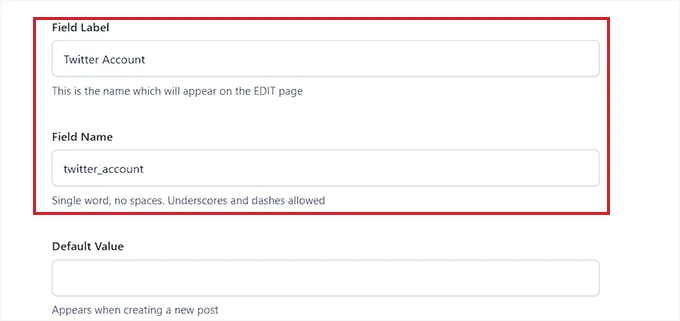
For example:
| Field Label | Field Name |
|---|---|
| Phone Number | phone_number |
| Company | company_name |
| linkedin_profile |
The Field Name is what you must use in your code.
Example:
get_field( 'phone_number', 'user_' . $user_id );Not the label, but the field name.
Method 2: Inspect the User Profile in the WordPress Admin
Another easy way is to check the data saved in the user profile.
- Go to Users → All Users.
- Click Edit on any user.
- Scroll down until you see the custom fields section.
Although WordPress does not always display the meta key itself, this helps you verify whether the field is saving data correctly.
If the field is empty, the problem may not be the field name but the saved data.
Method 3: Use the get_user_meta() Debug Method
If you are unsure what meta keys exist for a user, you can temporarily print them.
Add this debugging code to a template file:
$user_id = get_the_author_meta('ID');
print_r( get_user_meta( $user_id ) );
This will output all metadata stored for that user.
You will see something like:
Array
(
    [phone_number] => Array ( [0] => 123456789 )
    [company_name] => Array ( [0] => WP Passion )
    [linkedin_profile] => Array ( [0] => https://linkedin.com/... )
)
From this list, you can identify the exact meta key you need.
After finding the correct field name, remove the debugging code.
Common Mistakes to Avoid
When working with custom fields, beginners often run into a few small issues.
Using the Field Label Instead of the Field Name
Wrong:
Phone NumberCorrect:
phone_numberLabels are for display. Field names are for code.
Misspelling the Meta Key
Even a small typo will break the output.
Example:
phone-number
phoneNumber
phonenumber
None of these will work if the real key is:
phone_numberForgetting the user_ Prefix in ACF
When retrieving user fields with ACF, you must include the user prefix.
Correct:
get_field( 'phone_number', 'user_' . $user_id );Without that prefix, ACF may look for a post field instead of a user field.
Final Tip
Whenever you create custom fields, it’s a good habit to use simple, clean field names, such as:
phone_numbercompany_namelinkedin_profiletwitter_handle
Avoid spaces or special characters, because clean field names make your code easier to maintain.
Final Thoughts
Custom user fields allow you to collect powerful information from your users. But displaying those fields on the frontend unlocks their real value.
With a few simple WordPress functions, you can display custom user data in:
- Author pages
- Profile pages
- Member directories
- Blog post author boxes
The best part is that WordPress already provides all the tools you need, so you can build flexible user experiences without complex plugins.