Follow us:

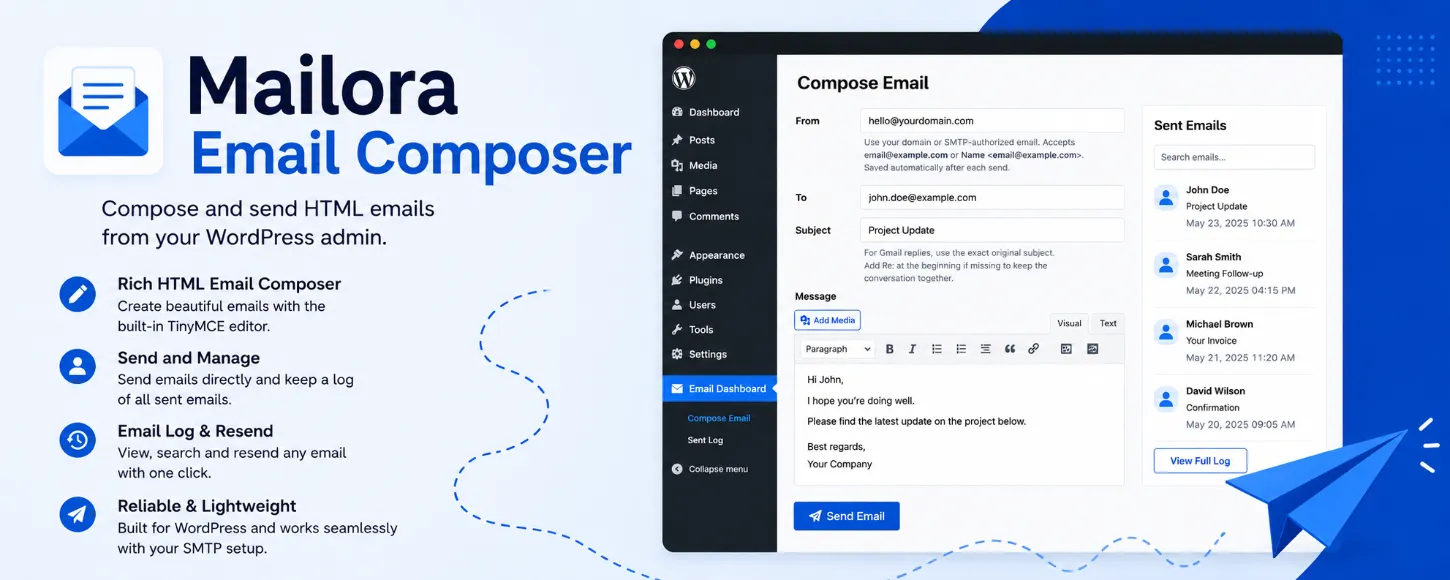
Sometimes, you need to send a quick email directly from your WordPress website.
Maybe you want to:
- Reply to a customer inquiry
- Send a formatted HTML email
- Test whether your site can send emails
- Contact a client without opening Gmail or webmail
- Resend a previous message quickly
By default, WordPress cannot do this properly. While WordPress can send automated emails through wp_mail(), it does not include a built-in interface for manually composing and sending emails from the admin dashboard.
That is exactly where Mailora Email Composer comes in.
In this tutorial, we will show you how to send HTML emails directly from your WordPress dashboard using Mailora Email Composer.
What Is Mailora Email Composer?
Mailora Email Composer is a lightweight WordPress plugin that adds a clean email composer directly inside the WordPress admin area.
It allows you to:
- Compose rich HTML emails
- Use the WordPress TinyMCE editor
- Send emails manually from wp-admin
- Save and search sent emails
- Resend previous emails instantly
- Use SMTP plugins for reliable delivery
Unlike full CRM or newsletter plugins, Mailora Email Composer focuses on simplicity and speed.
Why Use Mailora Email Composer?
Most WordPress email plugins focus on newsletters, automation, or contact forms.
But sometimes you just need to send a manual email quickly.
Mailora Email Composer is useful because:
- You do not need to leave WordPress
- The interface is lightweight and distraction-free
- It supports formatted HTML emails
- You get a searchable sent email history
- It works with SMTP plugins and transactional email services
It is especially useful for:
- Freelancers
- Agencies
- WooCommerce store owners
- Developers
- Customer support workflows
- Small business websites
Important Things to Know Before Using the Plugin
Before using Mailora Email Composer, there are a few important things you should understand.
Your Website Must Be Able to Send Emails
The plugin uses WordPress’s built-in wp_mail() function.
If your website cannot send emails properly, the plugin will not magically fix email delivery.
SMTP Is Strongly Recommended
Although the plugin can work without SMTP on some hosting providers, using SMTP is highly recommended for:
- Better email deliverability
- Reduced spam issues
- More reliable sending
- Proper authentication
Popular SMTP plugins include:
- WP Mail SMTP
- FluentSMTP
- Post SMTP
You can connect these plugins to providers like:
- Gmail SMTP
- SendGrid
- Mailgun
- Amazon SES
- Postmark
How to Install Mailora Email Composer
Step 1: Install the Plugin
From your WordPress dashboard:
Go to Plugins → Add New

Search for “Mailora Email Composer”
Click Install Now
Click Activate
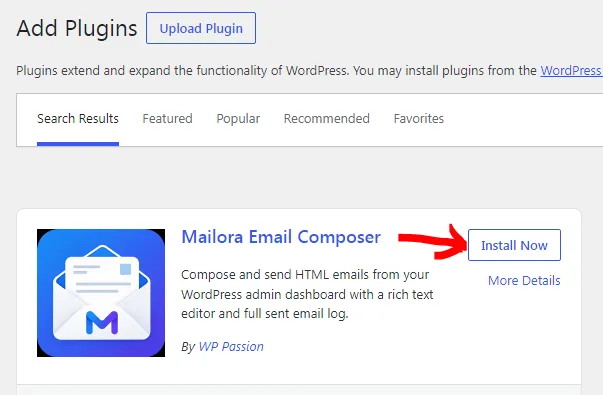
Alternatively, you can download the plugin from the WordPress plugin repository and upload it manually.
How to Send an Email Using Mailora Email Composer
Once activated, you will be redirected the email composer page.
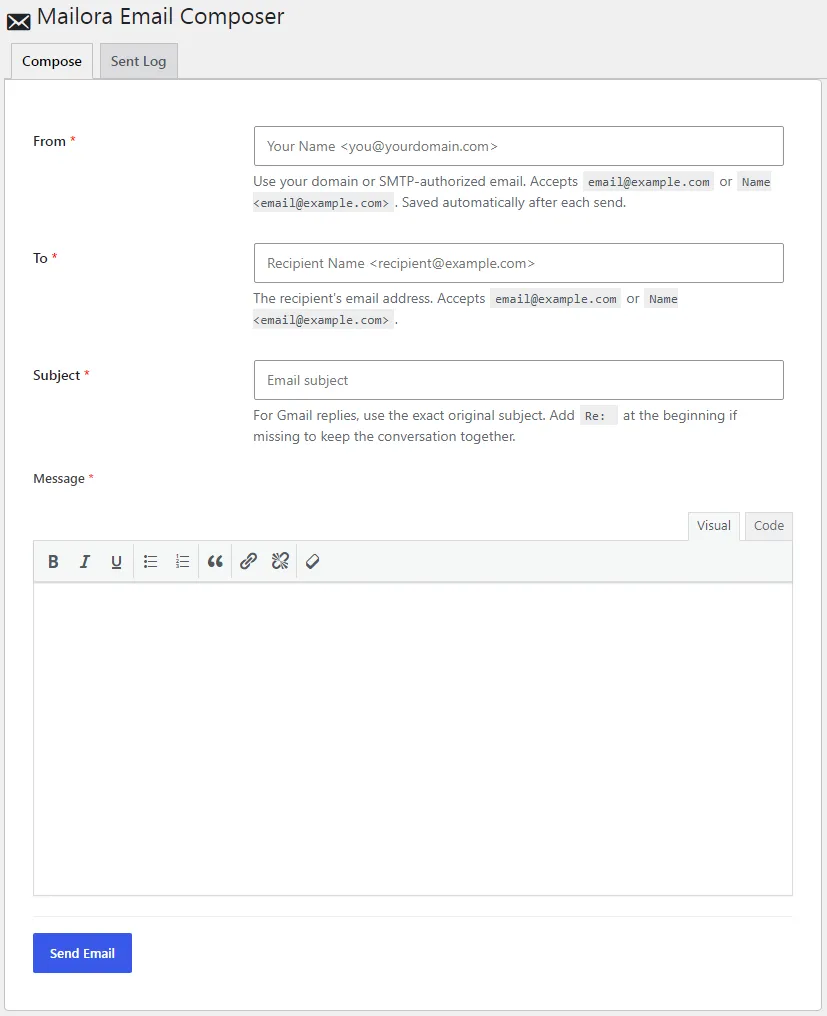
Step 2: Enter the From Email Address
The From field is the sender email address.
Use:
- Your domain email address
- Or an SMTP-authorized sender email
Examples:
hello@example.comor
John Doe <hello@example.com>Do not use random personal Gmail or Yahoo addresses unless your SMTP provider explicitly allows them.
Step 3: Enter the Recipient Email
In the To field, enter the recipient address.
The plugin supports:
customer@example.comand
Jane Smith <customer@example.com>Step 4: Add the Subject Line
Enter the subject of your email.
If you are replying to a Gmail conversation and want Gmail to group the reply into the same conversation, use the exact original subject and add Re: at the beginning if needed.
Example:
Re: Project DiscussionStep 5: Compose Your HTML Email
Mailora Email Composer uses the built-in WordPress TinyMCE editor.
This means you can format your emails with:
- Bold text
- Italics
- Lists
- Links
- Paragraphs
- Quotes
Example email:
<p>Hello John,</p>

<p>Thank you for contacting us. We have received your request and will get back to you shortly.</p>

<p>Best regards,<br>Your Company</p>
Step 6: Send the Email
Click the Send Email button.
If your website email configuration is working correctly, the email will be sent immediately.
Viewing Sent Emails
One of the best features of Mailora Email Composer is the built-in sent email log.
Open the:
Sent Log
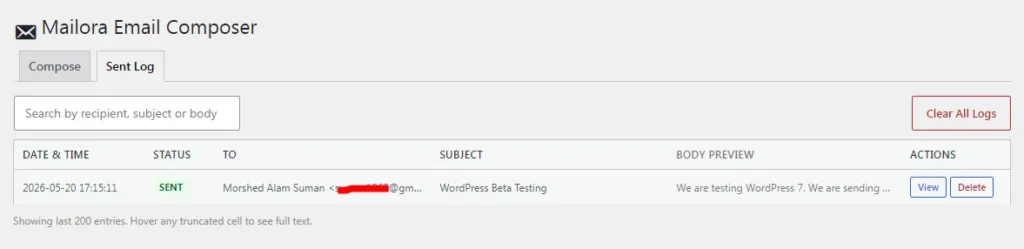
tab to:
- View sent emails
- Search emails
- Delete entries
- Reuse old emails
The plugin automatically stores sent emails in a custom database table.
To keep your database lightweight, it only keeps the latest 200 entries.
Resending Previous Emails
Need to send a similar email again?
Mailora Email Composer includes a:
Send Again
feature.
Open any previous email from the log and click:
Send Again
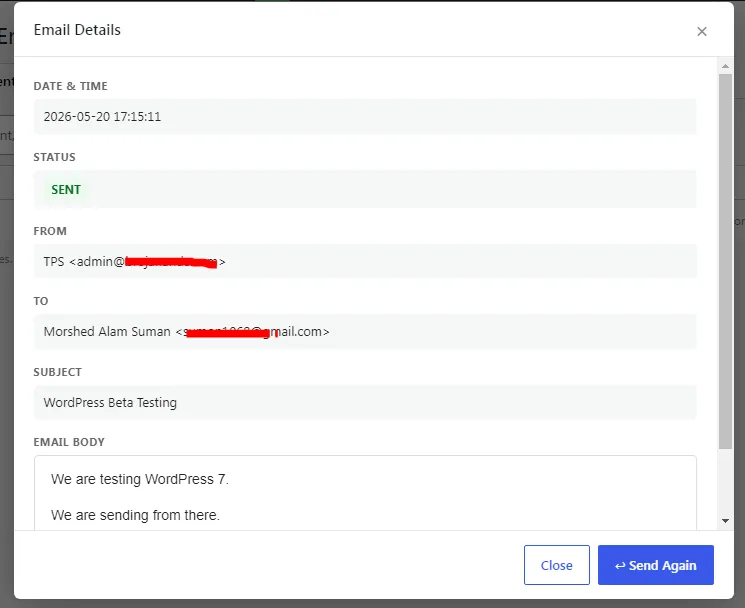
The plugin will automatically pre-fill:
- Recipient
- Subject
- Message content
This saves a lot of time for repetitive communication.
Is Mailora Email Composer Safe?
Yes.
The plugin includes a secure HTML viewer that displays email content inside a sandboxed iframe.
This helps isolate the email content from the rest of the WordPress admin area.
Common Email Delivery Problems
If your emails are not arriving, the problem is usually related to email delivery configuration rather than the plugin itself.
Here are common causes:
Emails Going to Spam
This usually happens because:
- SPF/DKIM records are missing
- SMTP is not configured
- Your hosting mail server has poor reputation
Emails Not Sending at All
Possible reasons:
wp_mail()disabled by hosting provider- SMTP plugin misconfigured
- Firewall or security restrictions
Who Should Use Mailora Email Composer?
This plugin is perfect for:
- Website admins
- Support teams
- Freelancers
- Agencies
- WooCommerce stores
- Developers testing email functionality
If you simply need a lightweight way to send emails from WordPress, Mailora Email Composer does the job beautifully without unnecessary complexity.
Final Thoughts
Mailora Email Composer fills a surprisingly important gap in WordPress.
Instead of forcing users to install bloated CRM systems or switch to external webmail services, it provides a clean and practical way to send HTML emails directly from the WordPress dashboard.
It is lightweight, simple, useful, and surprisingly powerful for day-to-day communication workflows.
If you regularly send emails from WordPress, this plugin can save you a lot of time.