Follow us:


WordPress makes it easy to add images to your posts and pages, but the default gallery block is quite limited. If you want your visitors to click on images and view them in a larger, more interactive format, then you’ll need a lightbox effect.
In this guide, we’ll show you how to easily add an image gallery with a lightbox effect in WordPress using a block-based plugin.
What Is a Lightbox Effect in WordPress?
A lightbox effect allows images to open in a fullscreen overlay when clicked, dimming the rest of the page in the background. Visitors can then zoom in, swipe or use arrows to navigate through the gallery without leaving the page.
This creates a more engaging browsing experience, especially for portfolios, product showcases, travel blogs, or any site that relies heavily on visuals.
Adding a Gallery With a Lightbox Effect
The easiest way to add a lightbox gallery in WordPress is by using a dedicated block plugin. For this tutorial, we’ll use the Simply Gallery Block plugin because it integrates directly with the WordPress block editor and is beginner-friendly.
Here’s how you can set it up step by step.
Step 1: Install and Activate the Plugin
Go to your WordPress dashboard and navigate to Plugins → Add Plugin.

Search for “Gallery Blocks with Lightbox”.
Install and activate the plugin.
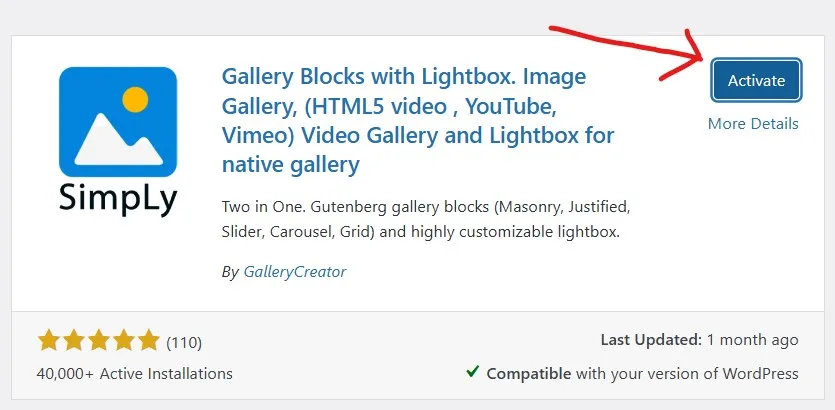
Once activated, new gallery blocks will become available in the block editor.
Step 2: Create a New Gallery
Edit the post or page where you want the gallery.
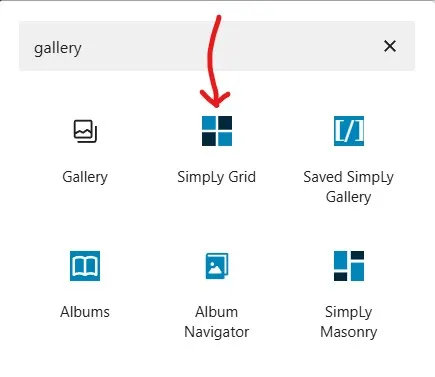
Click the “+” button to add a block and search for “Gallery.”
Select one of the gallery layouts provided by the plugin (Grid, Masonry, Justified, etc.).
Click on the Add Media button.
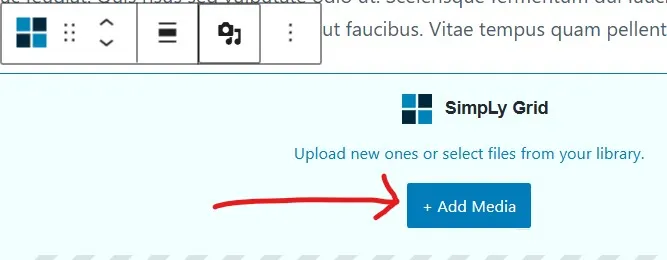
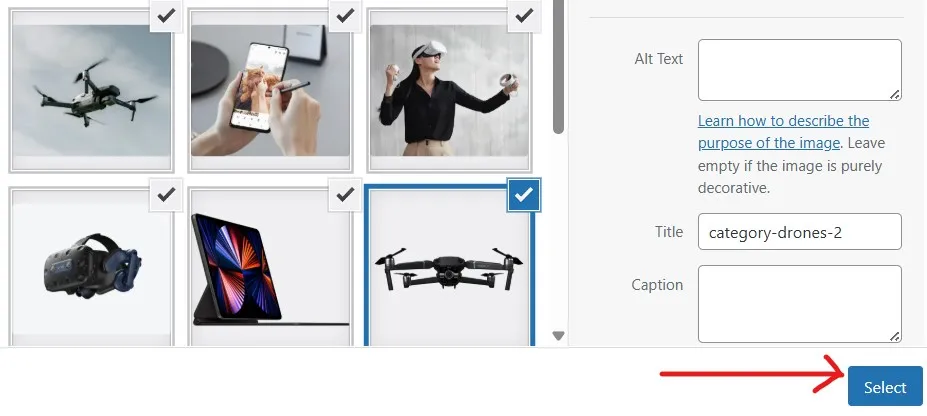
Upload new images or choose existing ones from the Media Library.
You can also add captions, titles, and alt text to make your images more descriptive and SEO-friendly.
Finally, click Select.
Step 3: Publish and Preview
Now, just publish your post or page. A beautiful gallery with a lightbox effect is waiting for you.
Now, when visitors click on an image, it will open beautifully in a lightbox with navigation controls for exploring the rest of the gallery.

Tips for Creating Engaging Galleries
- Use high-quality images but optimize them to reduce file size for faster loading.
- Add captions to tell the story behind your images.
- Test your gallery on both mobile and desktop to ensure it looks great everywhere.
- Organize large sets of images into multiple smaller galleries to improve loading time and user experience.
Adding a lightbox gallery to WordPress makes your images more interactive and helps keep visitors engaged on your site. With the block-based plugin method, you don’t need any coding skills—just insert the gallery block, upload your images, and the lightbox effect works right away.
It’s a simple yet effective way to make your website more visually appealing and user-friendly.