Follow us:


A sticky floating sidebar keeps your most important widgets visible while visitors scroll through your content.
Instead of disappearing after a few seconds, your newsletter form, affiliate banner, table of contents, or featured posts stay on the screen the entire time.
The best part? You can do this completely free using a lightweight plugin called WP Sticky Sidebar — and on most modern themes, it works automatically.
Let’s walk through it the smart way.
Why Add a Sticky Sidebar?
If you publish long-form content (which you should for SEO and authority), most users scroll far beyond your first screen.
That means:
- Your sidebar disappears quickly
- Your call-to-action gets ignored
- Your most important widgets lose visibility
A sticky sidebar solves that problem.
It helps you:
- Increase email signups
- Improve affiliate clicks
- Highlight important offers
- Boost internal link engagement
- Keep navigation accessible
When used properly, it improves engagement without hurting user experience.
The Plugin We’ll Use: WP Sticky Sidebar
There are many sticky plugins available, but most are bloated or locked behind premium features.
WP Sticky Sidebar is:
- Completely free
- Lightweight
- Compatible with most themes
- Easy to configure
- Clean and non-intrusive
Most importantly, it does not require rebuilding your sidebar or using a page builder.
It simply makes your existing sidebar “stick.”
Step 1: Install and Activate the Plugin
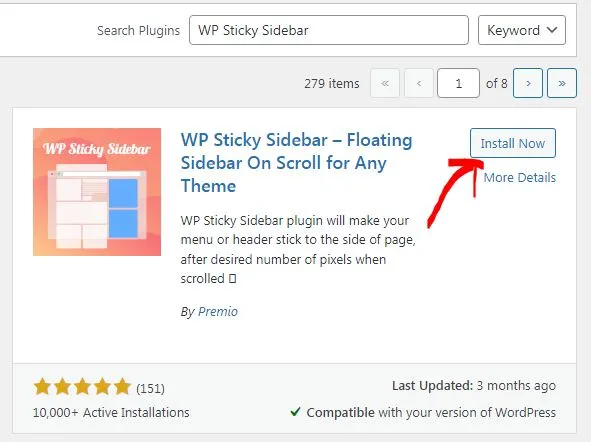
- Go to your WordPress dashboard
- Navigate to Plugins → Add New
- Search for WP Sticky Sidebar
- Click Install Now
- Click Activate
That’s it.
Now here’s the important part most tutorials overcomplicate.
Step 2: Check If It Works Automatically (It Usually Does)
After activation:
- Open a blog post on your website
- Scroll down the page
On most modern themes, the sidebar will immediately start sticking as you scroll.
No configuration needed.
No CSS selectors.
No advanced settings.
If your theme follows proper WordPress structure (which most good themes do), the plugin automatically detects:
- The sidebar element
- The content container
- Default spacing
If it works — you’re done.
Seriously.
When Do You Need to Configure It?
Only adjust settings if:
- The sidebar doesn’t stick
- It overlaps the footer
- It hides behind a sticky header
- You want custom spacing
- You want to disable it on mobile
If everything looks good, you don’t need to touch anything.
But if you do need adjustments, here’s how.
Optional: Fine-Tune the Sticky Behavior
Go to:
Dashboard → WP Sticky Sidebar
You’ll see several settings.
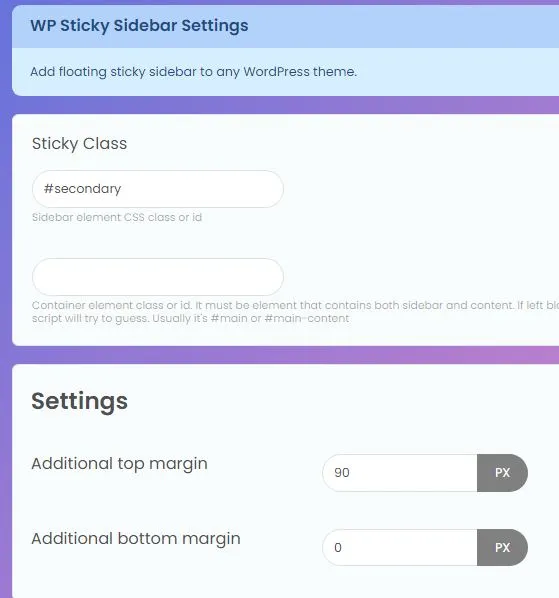
Sidebar Element
If auto-detection fails, you may need to enter your sidebar’s CSS selector.
Example:
#secondaryor
.sidebarYou can find this by right-clicking your sidebar → Inspect → checking its ID or class.
Again, this is rarely needed on modern themes.
Container Element
This prevents the sidebar from overlapping your footer.
If required, enter your main content wrapper selector (for example, #content).
Most of the time, the plugin handles this automatically.
Top Spacing
Controls space between the top of the screen and your sticky sidebar.
Increase this if:
- You use a sticky header
- The sidebar hides behind your navigation
20–40px usually works well.
Bottom Spacing
Prevents the sidebar from crashing into the footer.
20px is generally safe.
Minimum Screen Width
This is important.
Sticky sidebars on mobile can harm user experience.
Set something like:
- 768px
This ensures the sticky effect only works on desktop.
Highly recommended.
Best Practices for Sticky Sidebars
Just because you can make it sticky doesn’t mean you should overload it.
Here’s how to use it smartly.
Keep It Focused
A sticky sidebar works best with:
- One main call-to-action
- One supporting widget
Too many widgets create distraction.
Avoid Large Intrusive Ads
Huge sticky banners can frustrate users.
If you use ads, keep them subtle and well-spaced.
Make It Relevant
Your sticky widget should support the content.
Examples:
- On tutorial posts → show a related guide
- On affiliate posts → show a comparison table link
- On blog posts → show newsletter signup
Relevance increases clicks.
Common Problems and Quick Fixes
Sidebar Not Sticking
Usually caused by:
- Theme layout conflicts
- JavaScript conflicts
- Incorrect selector (if manually set)
Try resetting settings and letting auto-detection handle it.
Sidebar Overlapping Footer
Add or adjust the container element setting.
Increase bottom spacing if needed.
Sidebar Hidden Behind Header
Increase top spacing.
Does a Sticky Sidebar Improve SEO?
Directly? No.
Indirectly? Yes.
It can:
- Increase time on site
- Improve internal link clicks
- Boost email conversions
- Reduce bounce rate
Those engagement signals support your overall SEO performance.
But overusing it or making it aggressive can hurt user experience — so balance matters.
Final Thoughts
Adding a sticky floating sidebar in WordPress doesn’t require premium page builders or complicated code.
With WP Sticky Sidebar, most websites can enable it in under two minutes — often without changing a single setting.
If your goal is to:
- Improve conversions
- Highlight important content
- Increase engagement
- Make your blog feel more professional
A well-designed sticky sidebar is a simple but powerful upgrade.
Set it up. Test it. Keep it clean. And use it strategically.