Follow us:


Footnotes let you add context, references, or short asides without breaking the flow of your writing. For tutorial posts, research pieces, or long-form articles, footnotes keep your main narrative clean while giving readers the option to dive deeper. WordPress’s block editor (Gutenberg) includes a built-in Footnotes block that makes this fast and simple — no extra plugin required.
Why use built-in footnotes?
- Keep explanations out of the main text while still making sources and details available.
- Improve credibility on research-y or technical posts.
- Provide a smooth reader experience: clickable superscript numbers that jump to notes and back.
What is a footnote
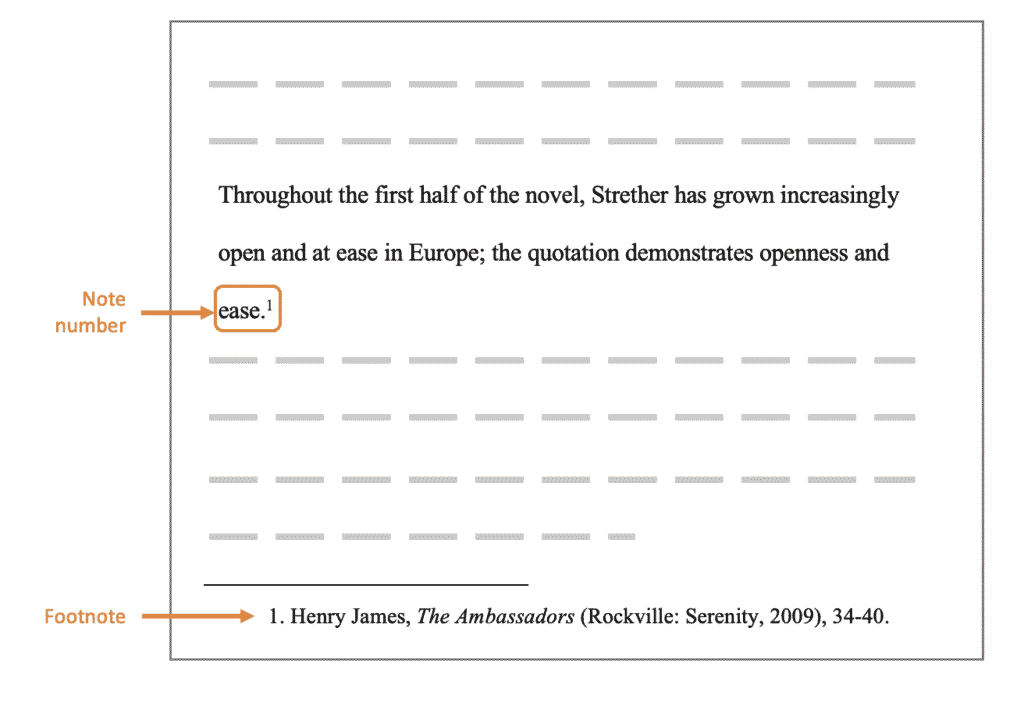
A footnote is a short note indicated by a superscript number in the body of the text. Clicking that number takes the reader to the matching note typically displayed at the bottom of the post (or in a footnotes list). The built-in Footnotes block automatically numbers and links those entries for you.
Here is an example:
When to use footnotes
- You need to cite sources or link to references without interrupting the flow.
- You want to add short clarifications or extra facts that aren’t essential to the main sentence.
- Your article is long and would be cluttered by parenthetical explanations.
Step-by-step: Add footnotes without a plugin (Gutenberg)
Follow these steps to insert footnotes using the native Footnotes block.
1. Open the post in the block editor
Go to Posts → All Posts, pick a post (or create a new one), and make sure you are using the Gutenberg block editor.
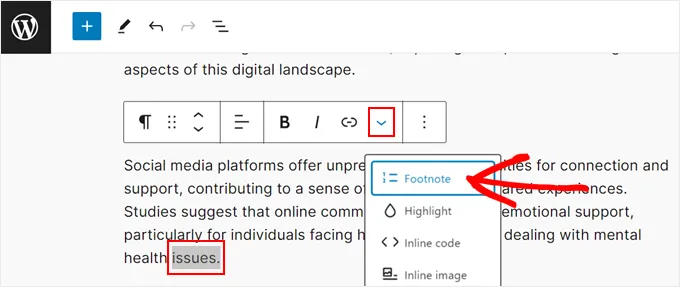
2. Highlight the word or phrase to footnote
Within a paragraph block, select the word or phrase where you want the footnote reference to appear.
3. Use the block toolbar to add a footnote
In the block toolbar that appears above the paragraph, click the dropdown arrow (the inline formatting menu) and choose Footnote. WordPress will automatically insert a numbered superscript in the text and add a Footnotes area at the bottom of the post.
4. Enter the footnote text
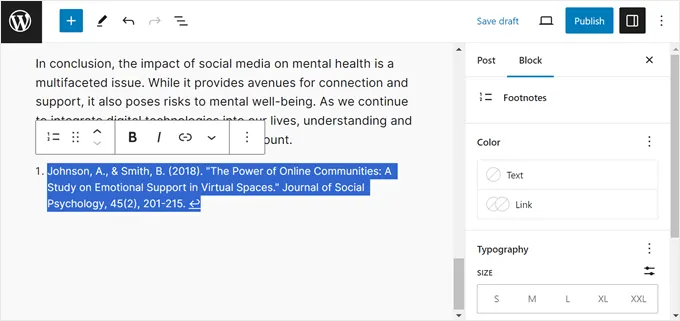
You will be moved to the bottom of the post where the Footnotes block is placed. Type your footnote text there. The editor keeps the note linked to the exact spot in the content — you don’t need to create anchors or manage IDs manually.
5. Repeat as needed
Add as many footnotes as the post needs. The block will automatically number each new footnote sequentially and keep the links synchronized.
6. Preview and test
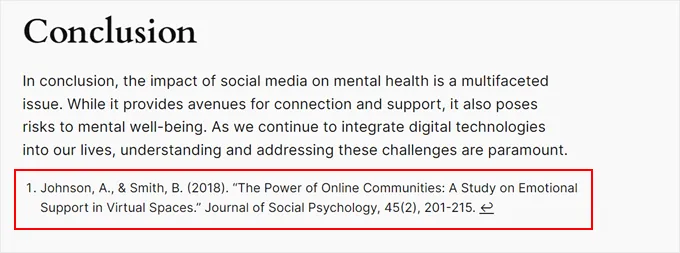
Preview the post and click a footnote number to confirm it jumps to the note.

Use the back arrow or browser back to return to the text.
Test on mobile to make sure long footnote text looks okay on small screens.
Customizing footnote appearance
The Footnotes block supports basic styling from the block settings:
- Use the right-hand block settings to change text typography, spacing, and color.
- If a footnote contains links, consider adjusting link color so they remain visible.
- For advanced styling, add custom CSS to your theme (for example to change spacing, borders, or the superscript style).
Accessibility & best practices
- Keep footnotes concise — long paragraphs of extra content are better placed in a dedicated section or an appendix.
- Don’t overload a single post with too many tiny footnotes — readers can get distracted.
- Make sure footnote links are keyboard accessible and clearly labeled; avoid ambiguous content in the footnote anchor.
- If your site syndicates content via RSS, check how footnotes appear in feeds and adjust if necessary.
Troubleshooting
- If you don’t see the Footnote option: confirm you’re using the block editor (Gutenberg). Classic Editor or some page builders may not expose the same inline toolbar.
- If footnotes don’t jump correctly: check for theme or plugin conflicts that alter anchor behavior or inline scripts. Temporarily switch to a default theme to test.
- Want different behavior (tooltips, collapsible notes, etc.)? That’s when a plugin like Modern Footnotes offers extra display options — but for simple, elegant notes, the built-in block is usually enough.
Final thoughts
The built-in Footnotes block is the easiest, cleanest way to add numbered, linked notes to your posts without installing anything extra. It keeps your content tidy, improves trust and readability, and requires minimal setup. Use footnotes when you want to supply extra value without interrupting the narrative — especially useful for tutorials, data-driven posts, and long guides.