Follow us:


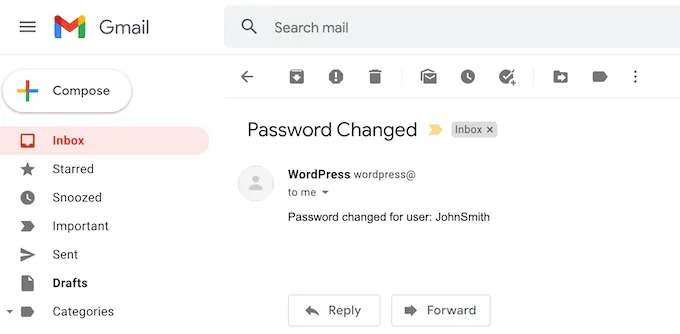
WordPress automatically sends an email notification to the site administrator whenever a user changes their password. This happens in two situations:
- When a user changes their password from their profile page inside the WordPress dashboard
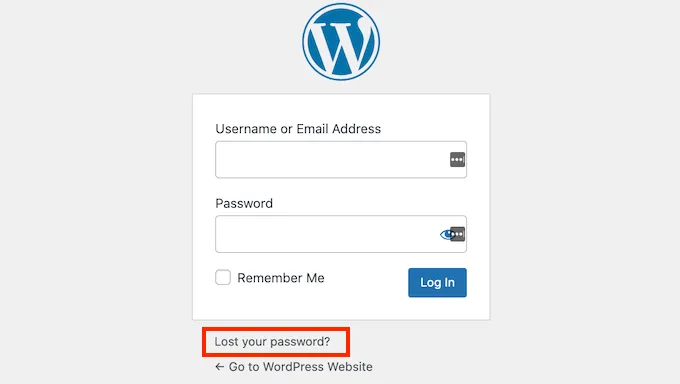
- When a user resets their password using the “Lost your password?” link
While this security feature can be useful, it often becomes unnecessary and annoying—especially on websites with many users.
If you run a membership site, WooCommerce store, or any website with frequent user activity, these emails can quickly flood your admin inbox.
In this guide, you’ll learn how to stop WordPress from sending password change notification emails to the admin—without using any plugin.
What This Method Does (and Doesn’t Do)
Let’s be clear about the result.
This method will:
- Stop WordPress from emailing the admin when a user changes or resets their password
This method will not:
- Stop users from receiving their own password reset emails
- Affect login, registration, or password functionality
- Disable security features
It only removes the admin-side notification emails.
Why WordPress Sends These Emails
WordPress sends password change emails to alert site owners about possible unauthorized access. If an account is compromised, the admin is notified immediately.
However, on sites with trusted users or automated registrations, this alert becomes more noise than protection—especially when password resets are common.
That’s why many site owners choose to disable it.
Disable Password Change Emails for Admin (Free Method)
This method uses built-in WordPress filters and works for both password change scenarios:
- Profile page password changes
- Lost password resets
No plugins required.
Option 1: Add Code to functions.php
This is the quickest way to apply the fix.
Step 1: Open functions.php
Go to:
- WordPress Dashboard → Appearance → Theme File Editor
- Open
functions.php
Or access the file using FTP or your hosting file manager.
Step 2: Add the Following Code
Paste this code at the bottom of the file:
// Disable password change email notifications for admin
remove_action( 'after_password_reset', 'wp_password_change_notification' );
Step 3: Save the File
Once saved, WordPress will stop sending admin emails when users change or reset their passwords.
Option 2: Create a Custom Plugin
If you don’t want this change to disappear when switching themes, using a small custom plugin is the best approach.
Step 1: Create a Plugin File
Go to:
/wp-content/plugins/Create a new file named:
disable-admin-password-change-emails.phpStep 2: Paste This Code
<?php
/**
 * Plugin Name: Disable Admin Password Change Emails
 * Description: Stops WordPress from sending password change and reset email notifications to the admin.
 * Version: 1.0
 * Author: WP Passion
 */
remove_action( 'after_password_reset', 'wp_password_change_notification' );
Step 3: Activate the Plugin
- Go to WordPress Dashboard → Plugins
- Activate Disable Admin Password Change Emails
That’s it. Admin password notification emails are now disabled.
Which Password Changes Are Covered?
This solution works for:
- Password changes made from Users → Profile
- Password resets using the Lost your password? link
Both scenarios will no longer trigger admin notification emails.
When Should You Disable These Emails?
This setup makes sense if:
- Your site has frequent password resets
- Users manage their own accounts
- You trust your user base
- You want a cleaner admin inbox
You can still monitor user activity manually from the WordPress dashboard if needed.
Final Thoughts
Password change notifications are useful for some sites—but unnecessary for many modern WordPress setups.
By using a lightweight, code-based solution, you can eliminate inbox clutter while keeping your site’s functionality and user experience untouched.
If you ever need the emails back, simply remove the code or deactivate the custom plugin.