Follow us:


Ever noticed how some blogs show a little note like “5 min read” next to the post title? It’s not just a fancy touch—it’s a small but powerful feature that improves user experience.
Adding an estimated reading time in WordPress helps readers decide if they have enough time to finish your article before diving in. It also builds trust by setting clear expectations.
In this guide, you’ll learn how to display estimated post reading time in WordPress—both with and without plugins.
Why Show Reading Time in WordPress?
Here’s why thousands of content-rich blogs, including Medium, use this feature:
- Improves engagement: Readers know what they’re signing up for, so they’re more likely to stay and finish.
- Boosts readability: Makes long posts feel less intimidating.
- Enhances user experience: It’s a small detail that shows you care about your readers’ time.
- Encourages deeper reading: Short reads can attract busy visitors to explore more posts.
Method 1: Using the Gutenberg Block
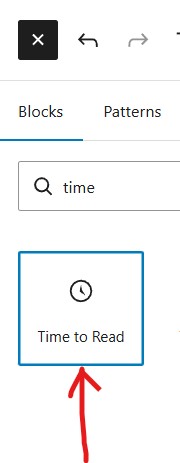
If you use a block theme, you can use the default Time to Read block for showing reading time. You can edit the template “Single item: Post” to display the reading time.
This gives you more flexibility in placement and design.
Here’s how to do it:
- Add a new block: Click the (+) icon to add a new block.
- Search for “Time to Read”: Type
timein the search bar. - Insert and customize: The block automatically shows your post’s estimated reading time. Use the settings sidebar to adjust text, color, or alignment.
Method 2: Manually Adding Custom Code (No Plugin Needed)
This method is for advanced users who prefer not to install another plugin. You’ll manually calculate and display the reading time using a custom PHP function.
Step 1: Create the Function
Add the following PHP code to your theme’s functions.php file or use a Code Snippets plugin (recommended if you’re not using a child theme).
function get_estimated_reading_time() {
    $content = get_post_field( 'post_content', get_the_ID() );
    $word_count = str_word_count( strip_tags( $content ) );
    $reading_time = ceil( $word_count / 275 ); // Adjust words per minute here
    return $reading_time . ' min read';
}
This function:
- Retrieves your post content
- Counts the total words
- Divides it by an average reading speed (275 words per minute by default)
- Returns the result, rounded up to the nearest minute
Step 2: Insert the Function in Your Theme
To display the reading time automatically on all single posts, edit your theme’s single.php file and add the following code wherever you want the reading time to appear (usually after the title or before the content):
<?php echo get_estimated_reading_time(); ?>
That’s it! Your posts will now show something like “6 min read” above or below the title.
Method 3: Using a Plugin
If you prefer an easier, no-code solution, you can use a plugin that handles everything for you.
Here’s how:
- Go to Plugins → Add New in your WordPress dashboard.
- Search for Read Meter.
- Install and activate the plugin.
- Configure the display settings from Settings → Read Meter.
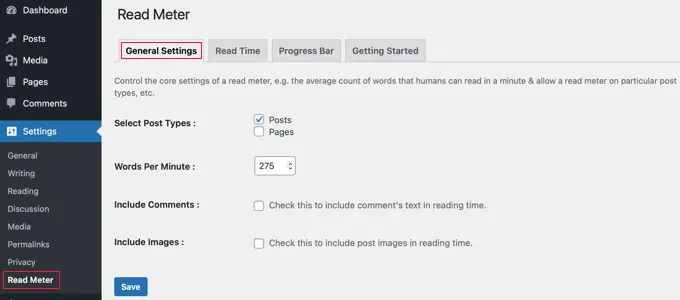
This plugin allows you to:
- Choose where to display the reading time (before content, after title, etc.)
- Customize the text (e.g., “Reading Time: 4 minutes”)
- Adjust words-per-minute speed
- Show a progress bar
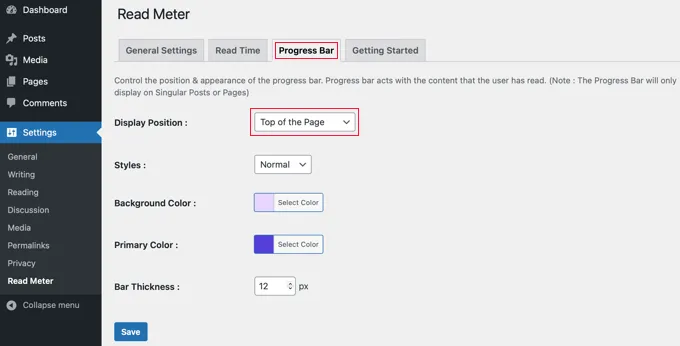
This is the easiest way if you want instant results without editing theme files.
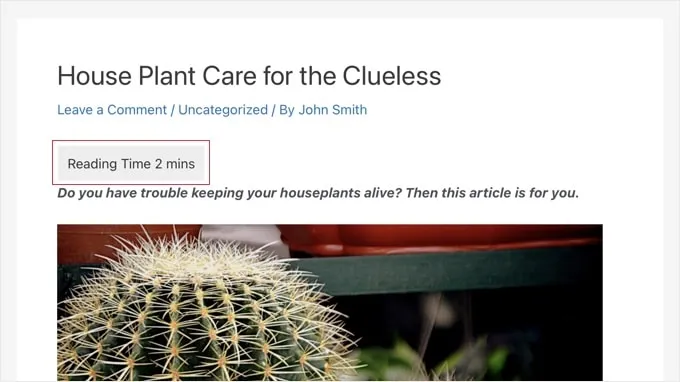
Adding estimated reading time is one of those small improvements that makes a big difference.
Whether you use a simple PHP snippet, a Gutenberg block, or a plugin—your readers will appreciate the transparency and readability boost.
If you’re comfortable with code, the manual method keeps your site lightweight. But if you prefer convenience, plugins and blocks are your friends.
Either way, your visitors will thank you for respecting their time.