Follow us:


Spam registrations are one of the most frustrating problems WordPress site owners face. Whether you’re running a membership site, an online store, or simply allowing user sign-ups, automated bots can flood your site with fake accounts. These spam registrations not only clutter your database but can also slow down your website, skew your analytics, and even open doors for malicious activity.
One of the most effective ways to stop this is by using Cloudflare Turnstile, a privacy-friendly CAPTCHA alternative that adds an extra security layer to your registration form without annoying your users.
In this guide, we’ll walk you through how to set up Cloudflare Turnstile on your WordPress registration page to block spam sign-ups.
Why Spam Registrations Happen
By default, WordPress allows anyone to register if you have membership enabled. Unfortunately, this makes your site an easy target for bots that automatically submit registration forms. These bots can:
- Create thousands of fake accounts within minutes
- Attempt brute-force attacks using registered accounts
- Overload your server resources
- Send spam or malicious content through your site
That’s why relying only on WordPress’s built-in registration system isn’t enough—you need an extra security layer.
What is Cloudflare Turnstile?
Cloudflare Turnstile is a modern CAPTCHA alternative that helps websites verify whether a user is real or a bot. Unlike traditional CAPTCHAs (which often ask users to solve puzzles, click traffic lights, or type distorted text), Turnstile works silently in the background to validate users with little to no friction.
Some key benefits of Turnstile include:
- User-friendly: No frustrating puzzles for visitors.
- Privacy-first: Does not use invasive tracking like some CAPTCHA providers.
- Lightweight: Won’t slow down your website.
- Free to use: Included with Cloudflare services at no cost.
By enabling Turnstile on your registration page, you make it nearly impossible for automated bots to register while keeping the process simple for real users.
Step 1: Create a Cloudflare Turnstile Site Key and Secret Key
To use Turnstile, you’ll need to generate a pair of keys inside your Cloudflare account.
Log in to your Cloudflare dashboard. You’ll need to create a Cloudflare account using your email address if you haven’t already.
From the left menu, click on Turnstile.
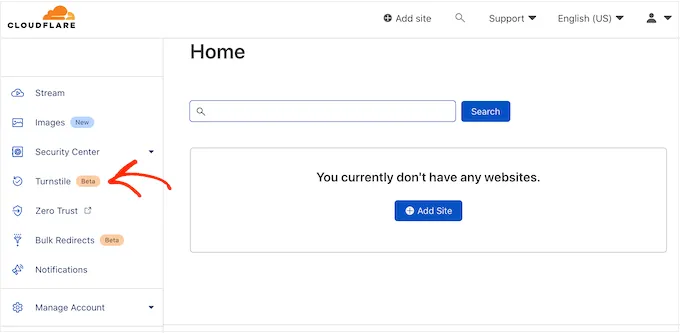
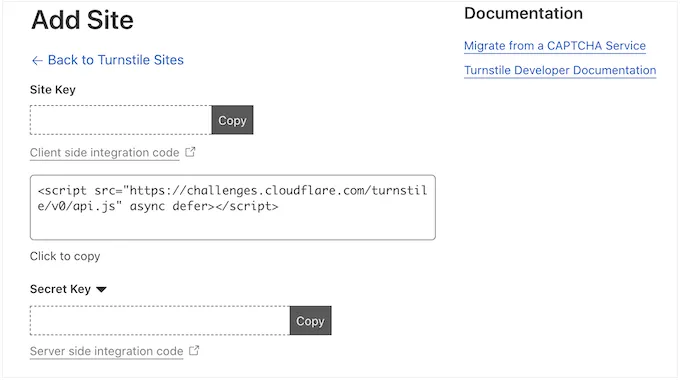
Click the + Add site button.
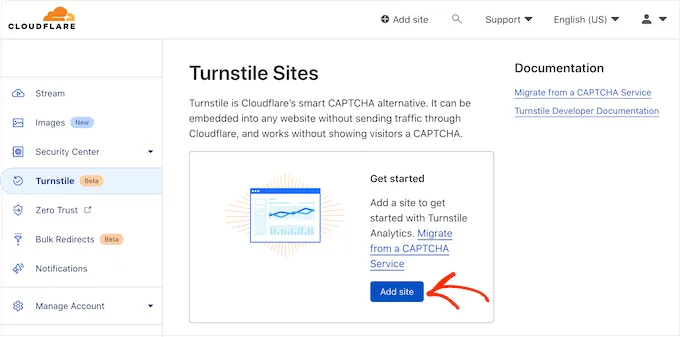
Enter a descriptive site name (for example: “WordPress Website”).
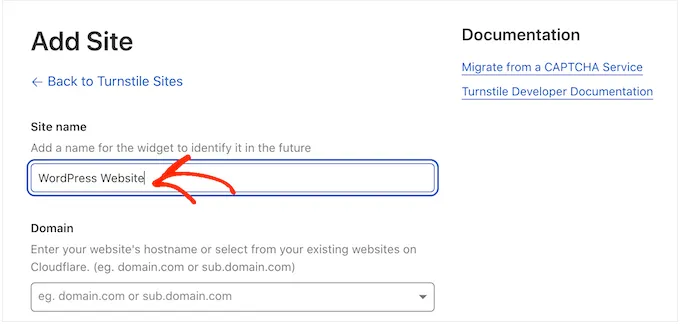
Under Domain, enter your website’s URL (e.g., example.com).
Choose the Widget type. For registration pages, Managed is usually the best option.
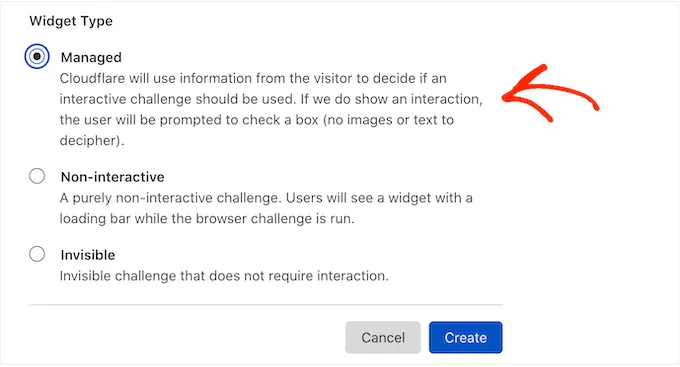
Click Create.
Cloudflare will generate a Site Key and Secret Key. Keep these handy—you’ll need them for the plugin setup.
Step 2: Install and Configure the Turnstile Plugin in WordPress
Next, you’ll integrate Turnstile with your WordPress registration page.
From your WordPress dashboard, go to Plugins » Add Plugin.
Search for Simple Cloudflare Turnstile.
Install and activate the plugin.
Go to Settings » Cloudflare Turnstile.
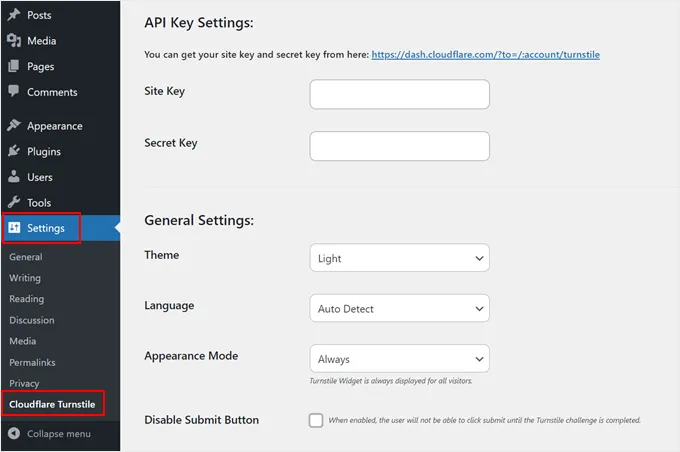
Enter the Site Key and Secret Key you copied earlier.
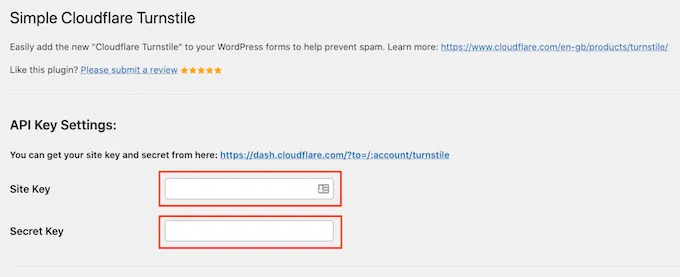
Save your changes.
At this point, your WordPress site is connected to Cloudflare Turnstile.
Step 3: Enable Turnstile on the Registration Page
The final step is to enable Turnstile protection specifically on your registration form.
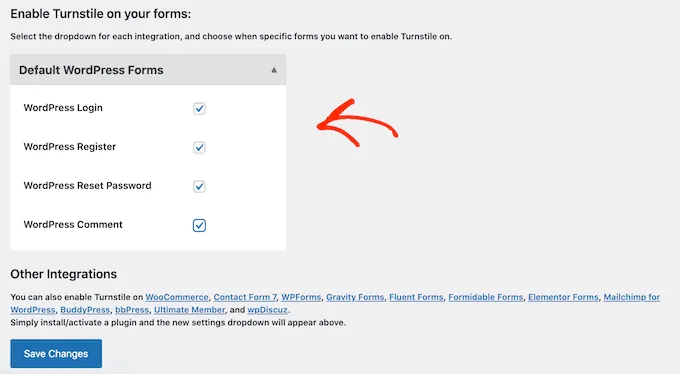
- In the plugin settings, look for the Enable Turnstile on your forms section.
- Check the box for Registration Form.
- Optionally, you can also enable it for:
- Login Form
- Reset Password Form
- Comment Form
- Save your settings.
Now, Turnstile will automatically appear on your registration page. When someone tries to sign up, Turnstile will verify whether they’re a human before allowing the account creation.
Alternative Method: Use Cloudflare Turnstile with All In One Security (AIOS)
If you already have the All In One Security (AIOS) plugin installed, you don’t need to install another plugin for Turnstile. The AIOS plugin has built-in support for Cloudflare Turnstile.
Here’s how to enable it:
- From your WordPress dashboard, go to AIOS » Brute Force.
- Open the CAPTCHA Settings tab.
- Under Select Default CAPTCHA, choose Cloudflare Turnstile.
- Enter your Site Key and Secret Key (the ones you generated from Cloudflare).
- Scroll down to the WordPress Forms CAPTCHA Settings section and choose where you want to enable it — such as the registration form, login form, or comment form.
- Click the Save Settings button.
That’s it! AIOS will automatically add Turnstile protection to the forms you selected. This method helps keep your site secure without adding another plugin.
Step 4: Test Your Registration Page
Once setup is complete, it’s important to test.
- Open your site’s registration page in a private browser window.
- Try filling out the registration form.
- You should see the Turnstile widget (depending on the type you selected).
- Submit the form to confirm it works correctly.
If everything is set up properly, real users will be able to register without issues, while bots will be blocked.
Additional Tips to Reduce Spam Registrations
While Cloudflare Turnstile is very effective, you can combine it with other strategies for stronger protection:
- Disable automatic user registrations unless absolutely necessary.
- Use email verification to ensure new accounts are valid.
- Manually approve new registrations for membership sites.
- Install a security plugin like Wordfence or iThemes Security for broader protection.
Frequently Asked Questions About Cloudflare Turnstile in WordPress
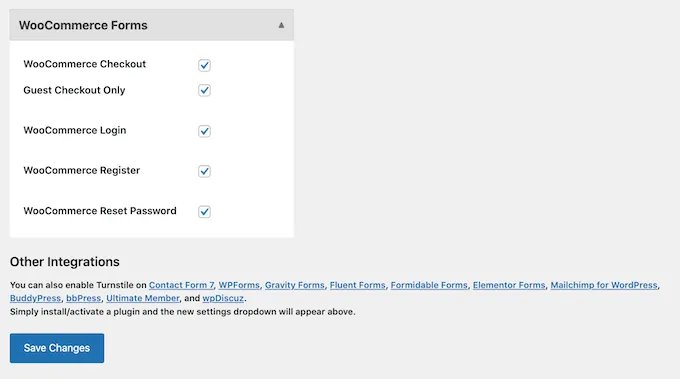
1. Can I use Cloudflare Turnstile on WooCommerce registration and checkout forms?
Yes. The plugin supports WooCommerce, so you can enable Turnstile on both the customer registration form and checkout form. This helps prevent fake accounts and spam orders.
2. Does Cloudflare Turnstile work with the WordPress login form?
Absolutely. In addition to the registration form, you can enable Turnstile on the login form, lost password form, and even the comment form if you want broader spam protection.
3. Is Cloudflare Turnstile free to use?
Yes. Turnstile is completely free as part of Cloudflare’s services. You only need a Cloudflare account to generate your site key and secret key.
4. Will adding Turnstile slow down my website?
No. Turnstile is lightweight and optimized for performance. In fact, it’s often faster than traditional CAPTCHAs because it runs quietly in the background without asking users to solve puzzles.
5. What happens if Turnstile blocks a genuine user?
Turnstile is designed to be user-friendly and rarely causes issues for real visitors. If you choose the Managed or Invisible widget type, most users won’t even notice it’s there.
Final Thoughts
Spam registrations can overwhelm your WordPress site and create unnecessary headaches. By adding Cloudflare Turnstile to your registration page, you put a stop to bots while keeping the process smooth for genuine users.
It’s free, privacy-friendly, and easy to set up—making it one of the best solutions for WordPress site owners who want to keep spam at bay.
Take a few minutes to set it up today, and you’ll immediately notice a cleaner, safer registration process on your site.