Follow us:


Sometimes, readers don’t want to go through an entire blog post. They might be looking for just one key paragraph, a specific sentence, or a particular section. If you can give them a direct link that takes them exactly where they need to go, it makes your content far more user-friendly and shareable.
In this guide, we’ll show you two simple methods to link directly to a specific part of a WordPress post or page.
Why You Might Want to Do This
- Better reader experience – readers can skip the scroll and get straight to the point.
- Easier sharing – people quoting your content can link to the exact paragraph they want.
- Professional touch – it feels polished and makes your posts stand out from others.
Method 1: Adding Anchor Links in WordPress
Anchor links are one of the most reliable ways to link to a specific part of your content. With this method, you edit your post and assign an ID to the sentence, paragraph, or section you want to highlight.
Step 1: Assign an ID
In the WordPress block editor, select the block you want to link to. Under the Advanced settings, you’ll see an option for “HTML Anchor.” Add a unique name there.
For example:
linkedsection
If you’re editing in HTML view, you can also add it manually like this:
<p id="linkedsection">This is the sentence readers can jump to.</p>Step 2: Create the Link
Now, link to that anchor.
- If it’s within the same post:
<a href="#linkedsection">Jump to the important sentence</a> - If it’s from another page or post:
<a href="https://example.com/blog-post/#linkedsection">See the important sentence</a>
Advantages of anchor links:
- Work in all browsers
- Fully under your control
- Great for building a table of contents
Method 2: Use “Copy Link to Highlight” in Modern Browsers
If you don’t want to edit your post or you’re linking to someone else’s article, you can use a browser feature available in Chrome, Edge, and other Chromium-based browsers.
Here’s how:
- Highlight the sentence or paragraph you want.
- Right-click and select Copy Link to Highlight.
- Share that link.
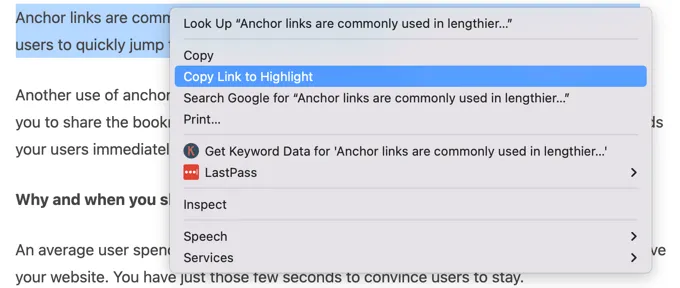
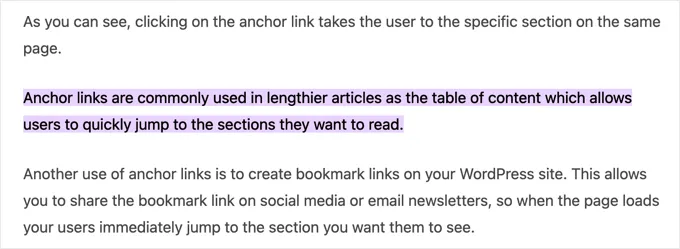
When someone clicks it, the browser will not only scroll to the right spot but also highlight the exact text you selected. The URL will look something like this:
https://example.com/blog-post/#:~:text=your-highlighted-textThis is how it will look when your Chrome users click on a link to a highlight:
Things to keep in mind:
- It may not work in Firefox or Safari — those browsers will still open the page, but without highlighting the text.
- It’s a quick solution if you don’t own the site or don’t want to edit your post.
Frequently Asked Questions
Can I link to a specific sentence in someone else’s blog post?
Yes, but only with the highlight method. You can’t add anchor IDs to a site you don’t own.
What’s the difference between an anchor link and a highlight link?
- Anchor links are more stable and universal.
- Highlight links look flashier but aren’t supported by all browsers.
Which one should I use?
If you own the post, use anchor links. If you’re sharing from someone else’s site, go with highlight links.
Best Practices for Linking to Specific Content
- Use clear, descriptive IDs like
key-tiporfinal-thoughtinstead of generic names. - Test highlight links in multiple browsers if your audience is diverse.
- Consider adding visible jump links or a table of contents to improve navigation.
By adding these little shortcuts, you make your content easier to navigate, easier to share, and more professional. Whether you use anchor links or highlight links, your readers will appreciate being able to get right to the part that matters most.

Thank you for the tutorial. This helps me a lot.