Follow us:


Every WordPress site is unique. Themes give you plenty of design options, but sometimes you may want more control—like changing button colors, adjusting fonts, or tweaking layout spacing. That’s where custom CSS comes in.
In this guide, we’ll cover three reliable and beginner-friendly methods:
- Adding CSS using the Theme Customizer (for classic themes)
- Adding CSS using the Full Site Editor (for block themes)
- Child Theme (Advanced)
Both methods are safe, don’t require editing theme files, and allow you to see changes in real-time.
Method 1: Add Custom CSS Using the Theme Customizer (Classic Themes)
If you’re using a classic theme, the Customizer is the easiest way to add CSS.
Step 1: Open the Customizer
Go to your WordPress dashboard and click Appearance » Customize.

Step 2: Open the Additional CSS Panel
In the sidebar, find and click the “Additional CSS” section.

Step 3: Add Your CSS
You’ll see a text area where you can type or paste CSS.

For example, if you want to change your site title and adjust content spacing, you could add:
.site-title {
  font-size: 2em;
  color: #3498db;
}
.content-area {
  margin-top: 20px;
}
As you type, the live preview shows changes instantly.
Step 4: Save Your Changes
When you’re happy with the result, click Publish.
Why this method works well:
- You see instant feedback.
- It doesn’t touch your theme’s core files.
- Safe to use even if you’re not an advanced developer.
Method 2: Add Custom CSS Using the Full Site Editor (Block Themes)
If your theme uses the modern block-based design system (Full Site Editor), you can add CSS directly from the editor.
Step 1: Open the Editor
Go to your WordPress dashboard and select Appearance » Editor.
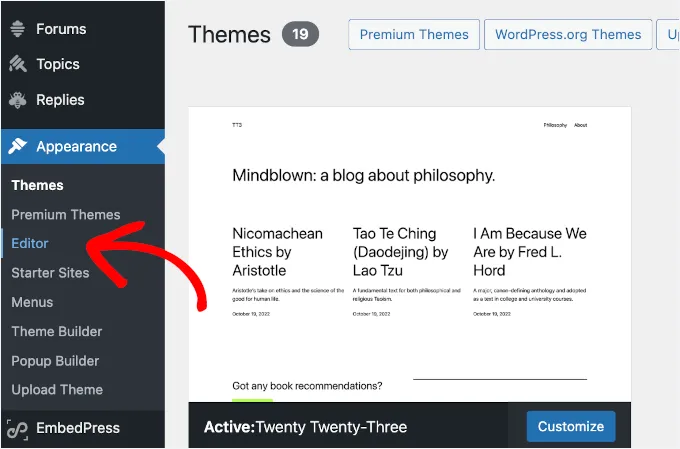
This will open the Full Site Editor.
Step 2: Open the Styles Panel
In the left-hand menu, go ahead and click on the ‘Styles’ tab.
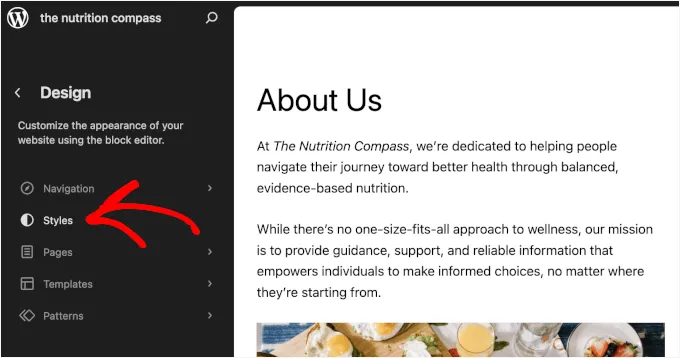
You should now see the ‘Styles’ panel for your site as well as your page preview.
From here, let’s click on the preview to open the block editor.

In the content editor, click on the ‘Styles’ icon. It looks like a circle that’s half-black and half-white.
After that, go ahead and select ‘Additional CSS.’

Step 3: Add Your CSS
In the CSS slide-out, you’ll find the ‘Additional CSS’ field.
You can enter your CSS here, and you’ll see the changes instantly in the live preview.

Paste your custom CSS. For example:
.wp-block-button__link {
  background-color: #e74c3c;
  border-radius: 5px;
}
.wp-block-heading {
  letter-spacing: 1px;
}
Again, the preview updates as you type.
Step 4: Save Your Work
Once satisfied, click Save to apply your styles across the site.
Why this method works well:
- Keeps your CSS neatly tied to your block theme.
- Works seamlessly with the design system of block-based WordPress.
- Instant preview makes experimenting easy.
Method 3: Child Theme (Advanced)
To add custom CSS to your child theme, go to Appearance » Theme File Editor.
Paste your CSS:

This method is best for extensive customizations, or if you prefer keeping your CSS in separate files—especially for changes that need to persist through theme updates.
Why Use a Child Theme?
A child theme inherits from the parent theme but allows you to safely add CSS or even modify PHP files. Updates to the parent theme won’t override your customizations.
Check out: How to Create a Child Theme in WordPress
Comparison Table
| Feature | Classic Themes (Customizer) | Block Themes (Full Site Editor) | Child Theme (Advanced) |
|---|---|---|---|
| Perfect For | Classic/non-block themes | Block/FSE themes | Extensive customization & CSS organization |
| How to Access | Appearance » Customize » Additional CSS | Appearance » Editor » Styles » Additional CSS | Upload child theme through Appearance » Themes |
| Live Preview | Yes | Yes | No (changes via CSS file or editor) |
| CSS Storage | Stored in theme settings | Stored with block theme styles | Stored in child theme files |
| Complexity | Very simple and intuitive | Slightly more modern UI | Technical setup but scalable |
| Persistence Across Updates | Risk losing with theme switch | Tied to block theme | 100% safe from overwrites |
| Editor Flexibility | Basic editor | Basic editor | Full code editing via FTP or IDE |
Final Tips for Using Custom CSS
- Preview before publishing to avoid breaking your site’s look.
- Keep a backup of your CSS in a file so you can reuse it if you change themes.
- Use custom CSS for styling tweaks, not for major layout changes—those are better handled with child themes or block editor settings.
Conclusion
Use the Customizer for quick tweaks in classic themes, the Full Site Editor for block-based themes, or go with a Child Theme for extensive and update-safe customization. Each method serves a different level of control and scalability—choose what’s best for your project.