Follow us:


Have you ever stumbled upon a brilliant code snippet online but hesitated to paste it into your WordPress site, fearing it might break everything? You’re not alone—but with the right approach, it’s easier and safer than you think.
Before Adding Code
Using custom code snippets in WordPress opens up powerful possibilities—enhanced features, improved security, and efficient tweaks without relying on endless plugins. But a tiny mistake can bring down your site.
Before diving in, always back up your site using a reliable backup plugin. That way, you can restore your site if something goes wrong.
Three Reliable Ways to Add Code Safely
1. WPCode Plugin (Easiest but Not Recommended)
Using a code-snippets management plugin is the most beginner-friendly option. WPCode gives you:
- A centralized hub for storing and organizing snippets.
- Built-in validation to prevent syntax errors that could break your site.
- Options to auto-insert code (e.g., everywhere, in the header/footer, after posts) or use them as shortcodes.
To use WPCode:
- Install and activate the free WPCode plugin.
- Navigate to Code Snippets » Add New in your WordPress dashboard.
- Choose a snippet or paste your own custom code.
- Select how/where to insert it (auto-insert or shortcode).
- Save and activate the snippet.
You may wonder why we don’t recommend using a third-party plugin to add custom code to WordPress. Adding a third-party plugin will increase the security risk. Check out:
2. Recommended: Site-Specific Plugin
If you’re okay working with WordPress plugins but want to avoid theme file risks, consider creating a site-specific plugin:
- Create a simple plugin file (e.g.
wpp-custom-code.php). - Upload and activate it like any other plugin.
- Add your custom code inside.
You can edit this via the built-in plugin editor. If there’s an error, WordPress automatically reverts your changes for safety.
Note: This method will work like adding code to the functions.php file.
Here is the details:
Open the text editor on your computer. For example, Visual Studio Code or Sublime Text or Notepad++ or even the default editor like Notepad.
Paste the following code on a new file:
<?php
/*
Plugin Name: My Custom Code
*/
Save the file, giving it a unique name like wpp-custom-code.php
Now, right click on your file and select the option Compress to > Zip File:

Keep the same name. Note: A plugin folder name should be unique to avoid conflicts.
So, you now have a wpp-custom-code.zip file, ready to upload as a site-specific plugin.
Now, go to Plugins » Add Plugin.

Click the Upload Plugin button, select your zip file and click Install Now.

Finally, activate the plugin:

From now on, you can use this plugin to insert your custom snippets.
Go to Plugins » Plugin File Editor. Select your plugin from the drop-down menu labeled ‘Select plugin to edit:’ and then click the Select button.
The editor will load your site-specific plugin. Then, you can simply add code to the page.
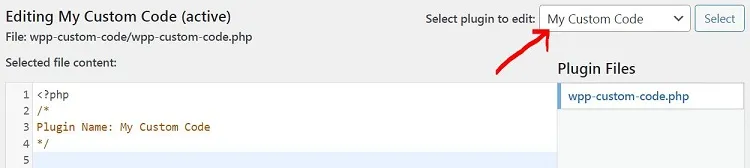
Don’t forget to click the Update File button after adding your snippets. If you make any mistakes, WordPress automatically reverts your changes for safety.
3. Childe Theme’s functions.php File
Editing functions.php or other theme files directly is not recommended. Why?
- Theme updates overwrite changes.
- The code stops working if you switch themes.
If you are okay with your theme and don’t have an intention to change it, create a child theme and add code to your child theme’s functions.php.
Go to Appearance » Theme File Editor, select your child theme’s functions.php file, paste your code, then save.
Quick Comparison: What Works Best for You?
| Method | Pros | Cons |
|---|---|---|
| WPCode Plugin | Central management, safety checks, insert flexibility | Requires plugin installation |
| Site-Specific Plugin | Keeps code separate, theme-independent | Involves basic plugin creation/setup |
| Child Theme File Editing | Direct access, no plugins required | Not portable |
Bonus Tips & Troubleshooting
- Testing: Always test on a staging site before going live.
- Error Prevention: A single missing semicolon can crash your site—use plugins like WPCode with validation or use WordPress File Editor.
- Backup First: Use a backup plugin to ensure you can roll back changes.
If you just want to add some css, you don’t need any of these. Follow this tutorial: How to Add Custom CSS to Your WordPress Website — Easily & Safely
TL;DR: Safe Code Snippet Workflow
- Back up your site.
- Paste code using site-specific plugin (recommended).
- Activate and test.
- Only edit theme files if you’re confident—and always use a child theme.