Follow us:


WordPress lets you schedule posts to go live at a future date. That’s great for planning—but visitors can’t normally see what’s coming next. In this guide, you’ll add a simple shortcode that lists your scheduled posts and then place it anywhere using the Shortcode block, including pages and widget areas.
Why Show Upcoming Posts?
- Build anticipation for what’s coming next
- Keep readers engaged and returning
- Showcase your editorial calendar publicly
- Coordinate multi-author workflows by signaling planned content
What You’ll Build
- A shortcode
[upcoming_posts]that outputs a neat list of scheduled posts - Easy placement using the Shortcode block on any page or widget area
- Optional attributes to control the number of items, ordering, and date display
Step 1: Add the Shortcode to Your Site
Add the following code to a safe place such as your child theme’s functions.php or a small site-specific plugin. Using a child theme or a code snippets plugin prevents changes from being lost on updates.
function wpp_upcoming_posts_shortcode( $atts ) {
    $atts = shortcode_atts(
        array(
            'limit'       => 5,              // how many items to show
            'order'       => 'ASC',          // ASC or DESC by scheduled date
            'show_date'   => '1',            // 1 to show date, 0 to hide
            'date_format' => '',             // defaults to site date format
            'post_type'   => 'post',         // change if you schedule a custom post type
            'category'    => '',             // optional: filter by category slug
        ),
        $atts,
        'upcoming_posts'
    );
    $order = strtoupper( $atts['order'] ) === 'DESC' ? 'DESC' : 'ASC';
    $limit = max( 1, intval( $atts['limit'] ) );
    $date_format = $atts['date_format'] !== '' ? $atts['date_format'] : get_option( 'date_format' );
    $args = array(
        'post_type'      => sanitize_key( $atts['post_type'] ),
        'post_status'    => 'future',
        'posts_per_page' => $limit,
        'orderby'        => 'date',
        'order'          => $order,
        'no_found_rows'  => true,
    );
    if ( $atts['category'] !== '' ) {
        $args['category_name'] = sanitize_text_field( $atts['category'] );
    }
    $q = new WP_Query( $args );
    if ( ! $q->have_posts() ) {
        return '<p class="wpp-upcoming-empty">No upcoming posts scheduled.</p>';
    }
    $out = '<ul class="wpp-upcoming-posts">';
    while ( $q->have_posts() ) {
        $q->the_post();
        $title = get_the_title();
        $date  = get_the_time( $date_format );
        if ( $atts['show_date'] === '1' ) {
            $out .= '<li>' . esc_html( $title ) . ' — ' . esc_html( $date ) . '</li>';
        } else {
            $out .= '<li>' . esc_html( $title ) . '</li>';
        }
    }
    wp_reset_postdata();
    $out .= '</ul>';
    return $out;
}
add_shortcode( 'upcoming_posts', 'wpp_upcoming_posts_shortcode' );
Step 2: Insert the Shortcode on a Page Using the Shortcode Block
Edit or create a page.
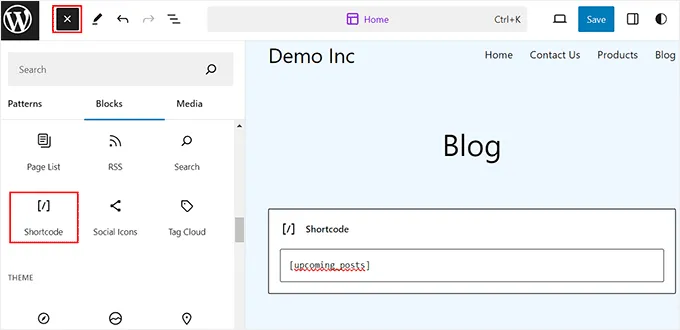
Click the add block ‘+’ button to open the block menu and add the Shortcode block to the page.
Paste: [upcoming_posts]
Update or publish the page.
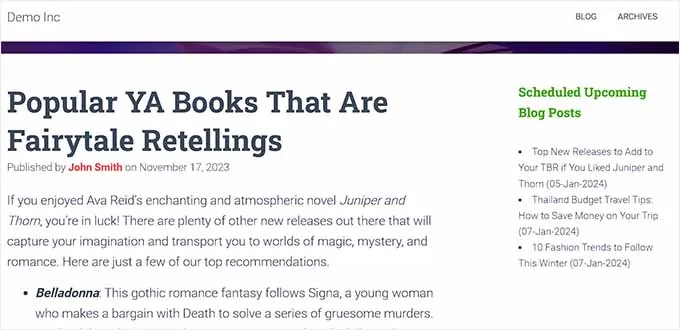
Now, simply visit your WordPress site to view the list of scheduled upcoming posts.

Step 3: Show the List in a Widget Area Using the Shortcode Block
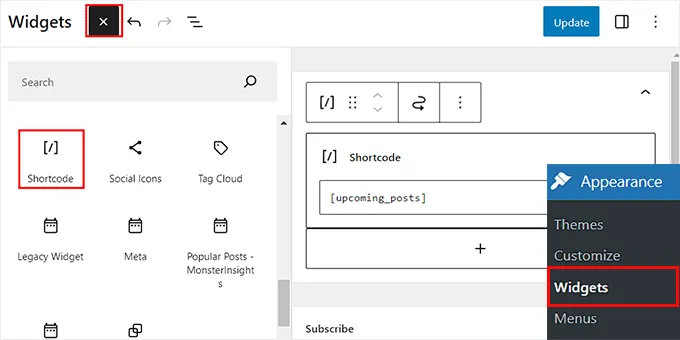
- Go to Appearance → Widgets.
- Add a Shortcode block to your desired sidebar or footer area.
- Paste:
[upcoming_posts] - Save your changes.
Now, you can visit your WordPress site to view the list of upcoming scheduled posts in action.
Customize the Output with Attributes
Use these attributes right inside the shortcode:
limit— number of items to showorder—ASCorDESCby scheduled dateshow_date—1to show the date,0to hidedate_format— leave empty to use the site’s format, or set your own (for exampleM j, Y)post_type— switch to a custom post type if you schedule thosecategory— filter by a category slug
Examples:
[upcoming_posts limit="10"]
[upcoming_posts order="DESC"]
[upcoming_posts show_date="0"]
[upcoming_posts date_format="M j, Y"]
[upcoming_posts category="news"]
[upcoming_posts post_type="book"]
Optional Styling (Drop-In CSS)
You can style the list to match your theme. Add this to your Additional CSS or stylesheet:
.wpp-upcoming-posts {
    list-style: none;
    margin: 0;
    padding: 0;
}
.wpp-upcoming-posts li {
    padding: 8px 0;
    border-bottom: 1px solid rgba(0,0,0,0.08);
}
.wpp-upcoming-empty {
    opacity: 0.8;
}
Troubleshooting
- Make sure your posts are actually scheduled (status: Scheduled) and not drafts.
- Verify your site timezone under Settings → General so dates display as expected.
- If nothing appears and you’re positive posts are scheduled, ensure your site can run scheduled tasks (WP-Cron must be working).